By Jacinta Hazel Wrenmoor · Publisher: fastjoinportal Browser Context Notebook
A phone call ends and you return to the tab you left open. The website looks familiar, but the game may be loading, waiting or showing a different starting screen. Before tapping, take a moment to identify what returned. An embedded game sits inside a wider page, and those two layers do not always resume in the same way.
The page and the game have different edges
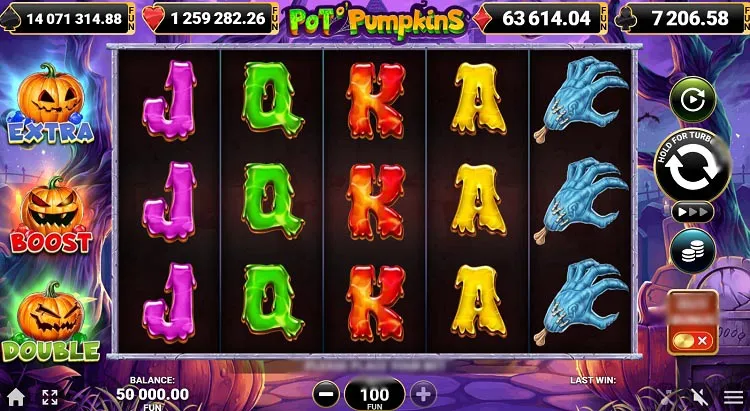
The fastjoinportal game page contains a frame supplied by another address. The site header, policy links and article navigation belong to the surrounding website. Symbols, game instructions and round controls belong to the loaded experience inside the frame. Knowing which layer you are using helps explain why a browser action can affect more than one visible part.
A page scroll moves your view through the website. A button inside the game can open an internal panel without changing the page address. Fullscreen, where available, changes the viewing space again. None of those actions by itself proves that progress has been saved. Read the visible state rather than treating a familiar background as confirmation.
Find your place before the next tap
- Look for the game name and any loading message.
- Check whether a menu or help panel is already open.
- Read the selected cost before starting a new round.
- Notice whether sound or fullscreen settings changed.
Make the controls readable first
On a small screen, a game can fit inside the page while its labels remain difficult to read. Try the orientation that gives the important controls enough space, and wait for the layout to settle. Avoid pressing a button while rotating the phone: its position may move. If a browser toolbar covers an edge, adjust the view before continuing.
| Action | What to check afterwards |
|---|---|
| Rotate the phone | Control positions and readable labels. |
| Leave fullscreen | The page position around the frame. |
| Reload the page | Whether the game starts again or restores state. |
Browser zoom and the game’s own scaling may behave differently. Use whichever supported controls make the instructions legible, then verify that the main action remains visible. You do not need to solve every layout problem while playing. If text stays unclear, leave the game and return on a screen that lets you read it comfortably.
- Allow loading and any active animation to finish.
- Identify the current panel and its close control.
- Check the balance unit and selected round setting.
- Continue only when the next action is clear.
A returning tab is not proof of a saved session
A browser may keep a tab available while the game inside it reconnects or restarts. The screen can also remain unchanged after a short interruption. These are observations to make, not promises about this particular provider. In October 2026, the practical check remains the same: read the current messages and settings before assuming continuity.
If the balance differs, do not repeatedly reload in the hope of restoring a preferred total. First establish whether you are looking at the same game and unit. Then look for an explanation in its instructions. Reading simulated results helps separate a round return from an overall balance change without guessing how storage works.
Keep a useful note when something fails
A short description can be more helpful than repeated tapping: record the page, visible message and action just before the problem. Avoid sharing personal details in a screenshot. If you were taking turns, tell your companion that the screen changed before passing the phone back. The ideas in sharing a screen comfortably also apply when play pauses.
Author’s opinion
I treat an embedded game as a fresh reading task whenever I return after an interruption. A few seconds spent checking the name, settings and messages can prevent a confused tap. I do not need a perfect explanation of the browser to make that choice. If the screen is unclear or unresponsive, closing the break is a reasonable finish.